Get Started
TelemetryDeck uses Zensical. For full documentation visit zensical.org.
Document Metadata
All metadata for a documentation page is specified in the YAML header at the top of its markdown file (also called the front matter of the document). Most of the metadata is optional, but the title is required:
---
icon: fontawesome/solid/icons
title: How to write this Documentation
tags:
  - tag 1
  - ...
  - tag n
status: new
---
The title string is how the page is titled in the left sidebar, at the top of the documentation page and in the "Getting Started" page, should it appear there.
Tags are used to organize documentation pages in the sidebar and to link related pages.
One tag:
Multiple tags:
Use the tags metadata to add additional tags that link articles together, such as
- The type of page (
setup,code) - The software stack or language (
swiftui,android,kotlinetc.) - The experience level of the reader (
beginner,intermediate,advanced) - The type of query (
filter,cohorts, etc.)
The status metadata is used to show the current status of a page. The following status identifiers are already defined:
- –
new: for brand new pages that deserve to stand out - –
deprecated: for pages that are not up to date anymore but still relevant to keep
Compatibility and Contribution
The right sidebar contains a list of compatibility information for the documentation page. If testedOn is set, it will display the testedOn value. In addition, it will show the date when the markdown file for the documentation page was last updated. This gives the reader additional hints as to how outdated or current the page is.
The right sidebar will also display a list of contributors who have written an git commit that touches the specific markdown file. The documentation system will try and retrieve the GitHub avatar images for the contributors by
- Retrieving the committer email from the git commit
- Searching for that email in the GitHub API
- Downloading the avatar image from the GitHub API
This will fail if the email is not found in the GitHub API, or if the email is not set as "public email" in the contributor's GitHub profile.
Best practices
Capitalization
We capitalize our Headings in Sentence Case (e.g., "This is a heading of our docs").
Date and Time Format
For date formats we use either:
- International/European date format:
DD/MM/YYYY(e.g., 01.04.2026) - ISO 8601:
YYYY-MM-DD(e.g., 2026-04-01)
For times we use either:
- 24-Hour:
HH:mm:ss(e.g., 14:30:05) - 12-Hour:
hh:mm:ss tt(e.g., 02:30:05 PM).AM/PMis capitalized.
Tables
Tables are supported in markdown. Here is an example:
| Name | Description |
|---|---|
title |
The title of the page. This is used in the left sidebar, at the top of the page and in the "Getting Started" page. |
Here is the markdown code for the previous table:
| Name    | Description                                                                                                        |
| ------- | ------------------------------------------------------------------------------------------------------------------ |
| `title` | The title of the page. This is used in the left sidebar, at the top of the page and in the "Getting Started" page. |
Formatting
Documentation is written in Markdown. This means you can write documentation in plain text, and it will be converted to HTML. All standard Markdown elements are supported, such as bold text, italic text, inline code, and links.
Go to documentation
- This was marked (highlight)
- This was inserted (underline)
This was deleted (strikethrough)- H2O
- ATA
- Ctrl+Alt+Del
Icons, Emojis
Go to documentation

:sparkles:
:rocket:
:tada:
:memo:
:eyes:
Unordered lists
- are just
- asteriks or dashes
Ordered lists
- are
- just
- numbers
Here is the markdown code for the previous paragraphs:
All standard Markdown elements are supported,
such as **bold text**, _italic text_, `inline code`,
and [links](https://www.markdownguide.org/basic-syntax/#link).

Unordered lists

* are just
* asteriks or dashes

and ordered lists

1.  are
1.  just
3.  numbers
Images
To display an image in a docs article, add it to the assets directory. You can then link it using regular markdown image syntax, adding /assets/ before the image's name.
Example: You just added the file privacy-overview.png to the assets folder. You can now display that image like so:
The first part is the image's alt text. The second part is the path (/assets/) and the image file name privacy-overview.png.
Here's what it looks like:
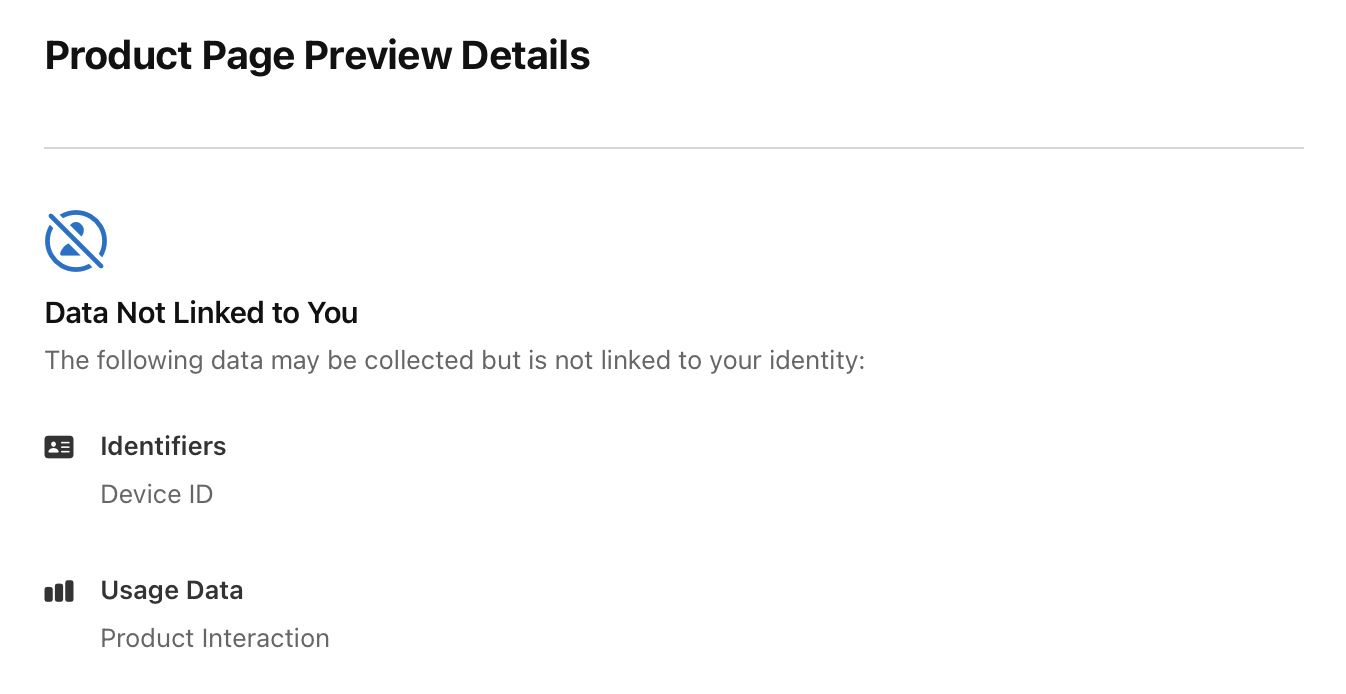
Image File Locations
Image files need to live in the assets directory inside docs/. Image files elsewhere in the file hierarchy will be ignored.
Prefix /assets/ to the path when linking to the image — the path is resolved against the docs site root.
Code Blocks
Go to documentation
Code blocks begin with three backticks (`) and end with three backticks (`). On the same line as the opening backticks, you must specify the programming language of the code block.
Results in:
If you can't specify a language, please use text instead.
Content tabs
Go to documentation
Admonitions
Go to documentation
Info
This is an info admonition. Use to provide additional information.
Note
This is a note admonition. Use it to provide helpful information.
Warning
This is a warning admonition. Be careful!
Details
Go to documentation
Click to expand for more info
This content is hidden until you click to expand it. Great for FAQs or long explanations.
Buttons
You can use button links to link to especially important pages or resources. Make a button by supplying
- a label
- an URL to link to
- and a CSS class selector to indicate wether the button is a primary button or a secondary button
[Subscribe to our newsletter](https://telemetrydeck.com/newsletter/){ .md-button .md-button--primary }
[Subscribe to our newsletter](https://telemetrydeck.com/newsletter/){ .md-button }
Subscribe to our newsletter Subscribe to our newsletter
Diagrams
Go to documentation
graph LR
  A[Start] --> B{Error?};
  B -->|Yes| C[Hmm...];
  C --> D[Debug];
  D --> B;
B ---->|No| E[Yay!];Footnotes
Go to documentation
Here's a sentence with a footnote.1
Hover it, to see a tooltip.
-
This is the footnote. ↩